
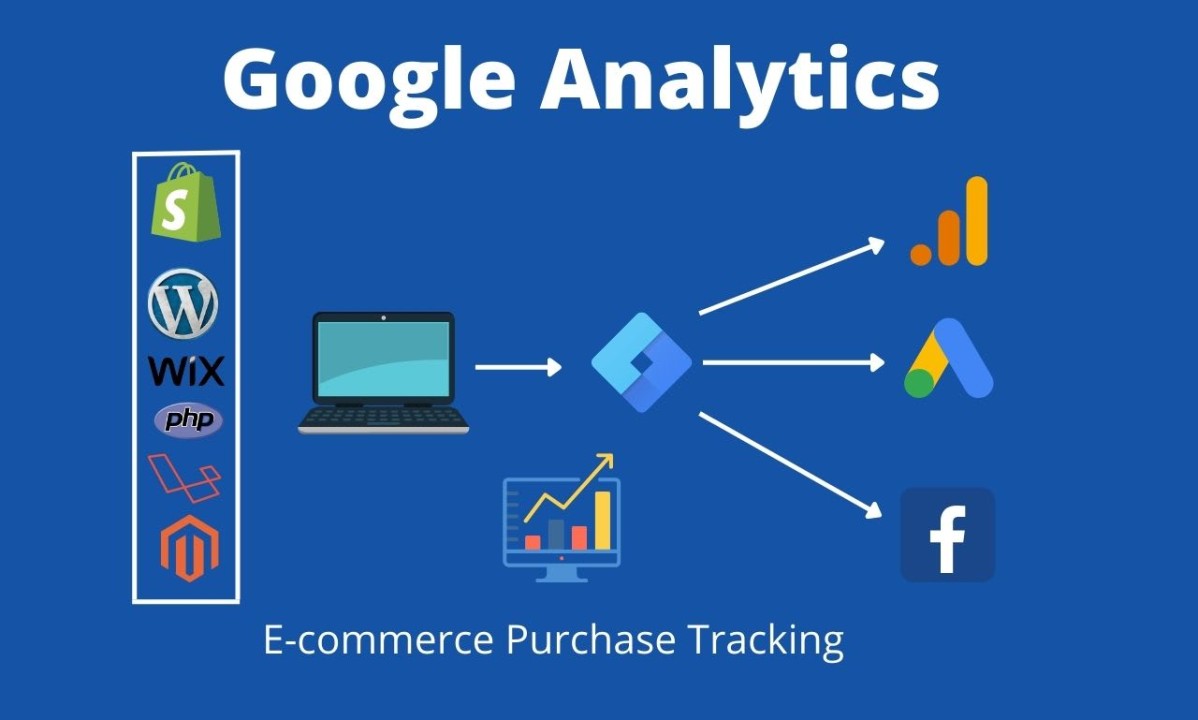
Analytics Guide | GA4 | E-Commerce
Setting up Google Analytics 4 (GA4) e-commerce tracking helps online store owners understand how visitors discover products, interact with shopping carts, complete purchases, and generate revenue. Instead of measuring website traffic alone, businesses can use e-commerce events to evaluate the entire customer journey and identify opportunities to improve conversion rates.
This step-by-step guide explains how to implement GA4 e-commerce tracking using Google Tag Manager, a website’s data layer, and platform-specific integrations. It also covers common mistakes, purchase tracking, revenue measurement, and troubleshooting.
1. Why Is GA4 E-Commerce Tracking Important?
Standard website analytics can reveal how many users visit an online store, which channels generate traffic, and which pages receive the most views. However, these metrics do not explain every step between a product page visit and a completed order.
GA4 e-commerce tracking adds structured information about products, shopping behavior, transactions, and revenue. When implemented correctly, it helps businesses answer questions such as:
- Which products generate the most purchases and revenue?
- How many visitors add products to their shopping carts?
- Where do shoppers abandon the checkout process?
- Which marketing channels generate valuable customers?
- How do promotions affect product views and conversion rates?
- What is the average revenue generated per transaction?
These insights support more informed decisions about advertising budgets, product merchandising, landing pages, checkout design, and customer acquisition strategies.
2. What You Need Before Setting Up GA4
Before implementing e-commerce tracking, make sure the store has the technical components required to send accurate data to Google Analytics.
- A Google account with access to the website’s analytics setup.
- A GA4 property and its web data stream.
- Access to the website’s theme, tag manager, or e-commerce integration.
- Access to the checkout or order confirmation implementation.
- A product catalog containing consistent product identifiers.
- A testing environment or a safe way to place a test order.
Google Tag Manager (GTM) is a flexible option because it allows developers and marketers to manage tags, triggers, and variables without editing the website’s code every time a tracking rule changes. Direct Google tag implementations and supported platform integrations are also valid options.
3. Create a Google Analytics 4 Property
1Open Google Analytics
Sign in to Google Analytics and create a new property if the store does not already have one. Enter a descriptive property name, select the appropriate reporting time zone, and choose the correct currency for the business.
2Create a web data stream
Select the web platform and enter the online store’s URL and stream
name. GA4 will provide a Measurement ID in the format
G-XXXXXXXXXX.
Keep this ID available because it identifies the web data stream receiving events from the store.
3Review enhanced measurement
GA4 offers enhanced measurement options for certain interactions, such as page views, scrolls, outbound clicks, and site searches, depending on the configuration. These features are useful for general website analysis but do not replace the recommended e-commerce event implementation.
After creating the property, confirm that the correct web stream is connected to the production website rather than an unrelated test property.
4. Install GA4 on Your E-Commerce Website
The installation method depends on the platform. Shopify, WooCommerce, Magento, and custom-built stores can have different implementation requirements.
Option A: Use Google Tag Manager
- Create or open the website’s Google Tag Manager container.
- Install the GTM container code on the website.
- Create a Google tag and enter the GA4 Measurement ID.
- Configure the tag to load on the appropriate pages.
- Publish the container after testing the configuration.
The Google tag establishes the connection to GA4. E-commerce events then need to be configured separately so product details, cart interactions, and purchase information are sent correctly.
Option B: Use a supported e-commerce integration
Some platforms and analytics integrations provide built-in support for GA4. These can simplify installation, particularly when the platform exposes product views, cart events, checkout activity, and order data automatically.
Verify exactly which events the integration sends. An integration that installs the base tag may not provide complete e-commerce tracking by itself.
Option C: Add the Google tag directly
Developers can install the Google tag directly when the website’s architecture supports this method. Avoid combining a direct implementation with a second implementation that sends the same events unless duplication is explicitly prevented.
5. Configure the Recommended GA4 E-Commerce Events
GA4 uses event names and parameters to describe shopping interactions. Consistent event naming is essential for meaningful reports.
| Event name | When it should fire | Typical parameters |
|---|---|---|
view_item_list |
A user views a product list or category. | item_list_id, items |
select_item |
A user selects a product from a list. | item_list_name, items |
view_item |
A product detail page is viewed. | currency, value, items |
add_to_cart |
A product is added to the cart. | currency, value, items |
remove_from_cart |
A product is removed from the cart. | currency, value, items |
view_cart |
The shopping cart is viewed. | currency, value, items |
begin_checkout |
The checkout process begins. | currency, value, items |
add_shipping_info |
Shipping information is submitted. | shipping_tier, items |
add_payment_info |
Payment information is submitted. | payment_type, items |
purchase |
A completed transaction is confirmed. | transaction_id, value, currency, items |
refund |
A refund is processed. | transaction_id, value, items |
Not every store needs to implement every event immediately. Start with product views, add-to-cart actions, checkout initiation, and purchases. Add the remaining events as the implementation matures.
add_to_cart
should not fire merely because a product page loads.
6. Set Up the GA4 E-Commerce Data Layer
The data layer is a structured way to pass information from a website to Google Tag Manager. It can contain product IDs, item names, prices, quantities, currency codes, and transaction details.
The following example demonstrates the structure for an
add_to_cart event. It should be triggered by the store’s
actual add-to-cart logic, using real product information.
window.dataLayer = window.dataLayer || [];

window.dataLayer.push({
  event: "add_to_cart",
  ecommerce: {
    currency: "USD",
    value: 49.99,
    items: [
      {
        item_id: "SKU-1001",
        item_name: "Example Product",
        item_category: "Accessories",
        price: 49.99,
        quantity: 1
      }
    ]
  }
});
This code pushes an event into the data layer. It does not send an e-commerce event to GA4 on its own. Google Tag Manager must have a matching trigger and GA4 event tag, or another integration must process the data layer event.
Important data layer implementation details
- Use stable product identifiers that match the store’s product catalog.
- Ensure that item prices and quantities reflect the actual transaction.
- Send the appropriate three-letter currency code, such as USD, EUR, or GBP.
- Use a consistent naming convention for product attributes.
- Prevent stale e-commerce objects from being reused accidentally.
For implementations that reuse the data layer across events, follow Google’s guidance for clearing or replacing previous e-commerce data where necessary. This helps prevent product details from one interaction from leaking into another event.
Example: View a product
window.dataLayer = window.dataLayer || [];

window.dataLayer.push({
  event: "view_item",
  ecommerce: {
    currency: "USD",
    value: 49.99,
    items: [
      {
        item_id: "SKU-1001",
        item_name: "Example Product",
        price: 49.99,
        quantity: 1
      }
    ]
  }
});
Product data should come from the actual catalog or commerce platform. The sample values above are placeholders, not a complete store integration.
7. Track Purchases and E-Commerce Revenue
Purchase tracking is one of the most important parts of a GA4 e-commerce implementation. Without accurate transaction data, reports may show traffic and engagement but fail to explain how much revenue the store generates.
Example purchase event
window.dataLayer = window.dataLayer || [];

window.dataLayer.push({
  event: "purchase",
  ecommerce: {
    transaction_id: "ORDER-12345",
    value: 89.98,
    tax: 6.00,
    shipping: 5.99,
    currency: "USD",
    items: [
      {
        item_id: "SKU-1001",
        item_name: "Example Product",
        price: 41.99,
        quantity: 2
      }
    ]
  }
});
This example illustrates the event structure. In a production implementation, the transaction ID, item data, and financial values must be generated from the actual order. The sample amounts are illustrative and should not be interpreted as an accounting formula for every store.
Key purchase tracking requirements
- Unique transaction ID: Use an order identifier that distinguishes one transaction from another.
- Correct currency: Report the currency in which the transaction is recorded.
- Accurate value: Follow Google’s recommended parameter definitions and the store’s pricing logic.
- Complete items array: Include the purchased products, prices, quantities, and relevant identifiers.
- Reliable trigger: Send the purchase event only when the order is confirmed, not when the checkout button is clicked.
A purchase event should generally be sent from a reliable order confirmation or order-processing workflow. A simple thank-you page trigger can be insufficient if customers refresh the page, revisit the URL, or complete payment through an external checkout provider.
8. Adapt the Setup to Your E-Commerce Platform
Shopify
Shopify stores may use supported Google integrations, platform analytics features, or a carefully managed Google Tag Manager implementation. Checkout extensibility and platform restrictions affect where tracking code can run. Confirm that purchase events include transaction IDs, item details, and the correct order values.
WooCommerce
WooCommerce websites can use analytics plugins, Google Tag Manager, or a custom data layer generated by WordPress and WooCommerce hooks. Check whether the selected plugin supports all required events and whether another plugin or theme is already sending them.
Magento and Adobe Commerce
Magento implementations often require an extension, a custom data layer, or integration work with the storefront and checkout process. Test product variations, discounts, multiple currencies, refunds, and order confirmation behavior.
Custom-built stores
A custom store can push events into Google Tag Manager or send events through another supported GA4 integration. Developers should map product and transaction data to Google’s recommended event schema and verify that consent requirements are respected.
9. Test GA4 E-Commerce Tracking Before Launch
Installing the tracking code does not guarantee that the data is correct. Testing should confirm both that events are received and that their parameters match real customer activity.
Use Google Tag Manager Preview
Connect Preview mode to the store and perform the actions that should trigger each event. Verify that the correct tag fires once, with the expected variables and event parameters.
Check GA4 DebugView
Open the GA4 property’s DebugView while using a supported debugging setup. Inspect the sequence of events and expand individual events to verify the values being sent.
Complete a test purchase
Use the platform’s test-order or sandbox functionality when available. Confirm that the purchase event includes a transaction ID, currency, value, and the expected item data.
Check standard reports
Realtime and DebugView can help identify implementation problems, but not every report updates immediately. Allow time for standard reports to process incoming data before concluding that events are missing.
Interactive GA4 implementation checklist
Use the checklist below to track the essential setup and validation tasks. Your progress is calculated locally in the browser.
10. Analyze Your E-Commerce Reports in GA4
Once data is being collected correctly, GA4 can help explain how visitors interact with products and which interactions lead to purchases.
Monitor product performance
Review item-level metrics to identify products that attract attention, generate revenue, or perform differently across acquisition channels. Product IDs and item names should remain consistent to avoid fragmented reporting.
Measure the shopping funnel
Compare product views, add-to-cart events, checkout starts, and purchases. A large drop between two stages can indicate pricing concerns, shipping costs, usability problems, payment failures, or measurement gaps. Analytics alone cannot determine which explanation is correct, so investigate the relevant user experience.
Evaluate marketing channels
Acquisition reports can help compare traffic sources and campaign performance. Use consistent campaign tagging and account for consent, attribution settings, reporting thresholds, and other factors that can affect the available data.
Track revenue and average order value
Revenue reporting helps evaluate commercial performance over time. Average order value can be calculated by dividing the relevant transaction revenue by the number of transactions, provided the definitions and included transaction types are consistent.
For deeper analysis, GA4 data can also be explored in Looker Studio or exported to BigQuery, depending on the store’s reporting needs and technical resources.
11. Common GA4 E-Commerce Tracking Mistakes
Tracking page views but not purchases
A correctly installed GA4 tag may collect basic traffic data while missing the e-commerce events needed to measure revenue. Implement and test the recommended commerce events separately.
Sending duplicate purchase events
Multiple analytics implementations, repeated checkout callbacks, or order confirmation page reloads can send duplicate events. Audit all tracking sources and test a complete transaction.
Using inconsistent product IDs
Different identifiers for the same product can make item-level reporting harder to interpret. Choose a consistent identifier and use it across the catalog, data layer, and analytics implementation.
Reporting the wrong currency or value
Currency mismatches and inconsistent value definitions can distort revenue comparisons. Verify discounts, shipping, taxes, refunds, and multi-currency behavior against the store’s intended reporting rules.
Assuming events appear instantly in every report
Debugging tools can show incoming events before all standard reports are updated. Validate the implementation in real time and allow for processing delays when checking historical reporting.
Ignoring consent and privacy requirements
Analytics configuration must respect applicable privacy laws and the store’s consent management setup. Configure consent behavior appropriately for the markets in which the store operates. Never send sensitive personal information, payment card details, or unnecessary customer identifiers as analytics event parameters.
12. Frequently Asked Questions
Is GA4 e-commerce tracking free?
The standard Google Analytics 4 property is available without a subscription fee. However, implementation, custom development, third-party integrations, and some associated services may involve costs.
Can GA4 track Shopify purchases?
Yes. Shopify stores can track purchases through supported platform integrations or a compatible custom implementation. The exact setup depends on the store’s configuration, checkout capabilities, and installed tracking tools.
Do I need Google Tag Manager for GA4 e-commerce tracking?
No. Google Tag Manager is a useful implementation option, but supported platform integrations and direct Google tag implementations can also send e-commerce events.
Why is GA4 not recording purchases?
Common causes include a missing purchase event, an incorrect Measurement ID, a tag that does not fire on the confirmation workflow, consent restrictions, checkout domain issues, or an incorrectly configured data layer. Use Tag Manager Preview and DebugView to identify where the event is lost.
How long does GA4 take to show e-commerce data?
Debugging and realtime tools can show incoming activity quickly, while standard reports may take longer to process. Timing varies with the report and data processing requirements.
Which GA4 events are essential for an online store?
A useful starting point includes view_item, add_to_cart, begin_checkout, and purchase. Adding view_item_list, select_item, view_cart, add_shipping_info, add_payment_info, remove_from_cart, and refund provides a more complete picture of the customer journey.
Can GA4 track revenue from multiple currencies?
GA4 supports currency reporting when events include correctly formatted currency codes and values. Make sure the implementation consistently sends the currency associated with each transaction.
Should the purchase event fire on the checkout button?
No. The purchase event should represent a confirmed transaction, not an attempt to place an order. Trigger it through a reliable confirmation or order-processing workflow.
Conclusion: Build a Reliable GA4 E-Commerce Tracking Setup
Setting up GA4 e-commerce tracking requires more than adding an analytics tag to an online store. Businesses need accurate event definitions, structured product data, reliable purchase tracking, and a consistent testing process.
Start with the essential events, validate product and transaction parameters, and gradually expand the implementation to cover the entire shopping journey. Once the data is reliable, GA4 can help identify conversion bottlenecks, evaluate marketing performance, understand product demand, and make better-informed e-commerce decisions.
The most important principle is simple: accurate tracking comes first. Business decisions based on incomplete or duplicated transaction data can be misleading, regardless of how sophisticated the analytics dashboard appears.